FAQ
Q: How am I billed for this service?
A:
There is no cost for using this payment site.
Q: When is the money for the payment drawn from my bank account?
A: The funds for the payment are debited from your account on the
scheduled payment date. Keep in mind that you should always have funds
available to cover the payment on that date.
Q: How can I confirm that a payment has been made?
A: You can check to see if the funds have been drawn from your bank
account, you can review your IWG statement of account via your online account -
MyRegus.com or MySpacesworks.com, or you can contact the Account Helpdesk via the
Help section in your online account.
Q: When will IWG receive and post my payment?
A: Once
your payment is successfully processed with the correct account number and
invoice number, please allow 3-5 business days for the payment to appear in
your IWG account.
Q: How do I know how much I need to pay?
A: You
can find your current balance due to IWG via your invoice, or via your online
account, MyRegus.com or MySpacesworks.com > Accounts > Statement.
Q: What if my IWG account is past due but I don’t have all the
money right now, can I make a partial payment?
A: If
you choose to make a partial payment, this will not stop the process of service
suspension and account termination at IWG.
Collections efforts will continue until your IWG account is paid in
full.
Q: If I have multiple accounts, can I make just one payment for
all the invoices?
A: No,
because to make a one-time Pay Now payment, you must “sign in” with a single
account number. The payment made using
that account number will only post to that account at IWG, it will not be able
to separate and filter to multiple IWG accounts. To keep your accounts organized and paid in
full and on time, you must make individual payments for each separate invoice.
Q: How do I complete a one-time Pay Now payment?
·
From the Pay Now home screen, enter your IWG
Account Number and re-enter it a second time in the appropriate field
o
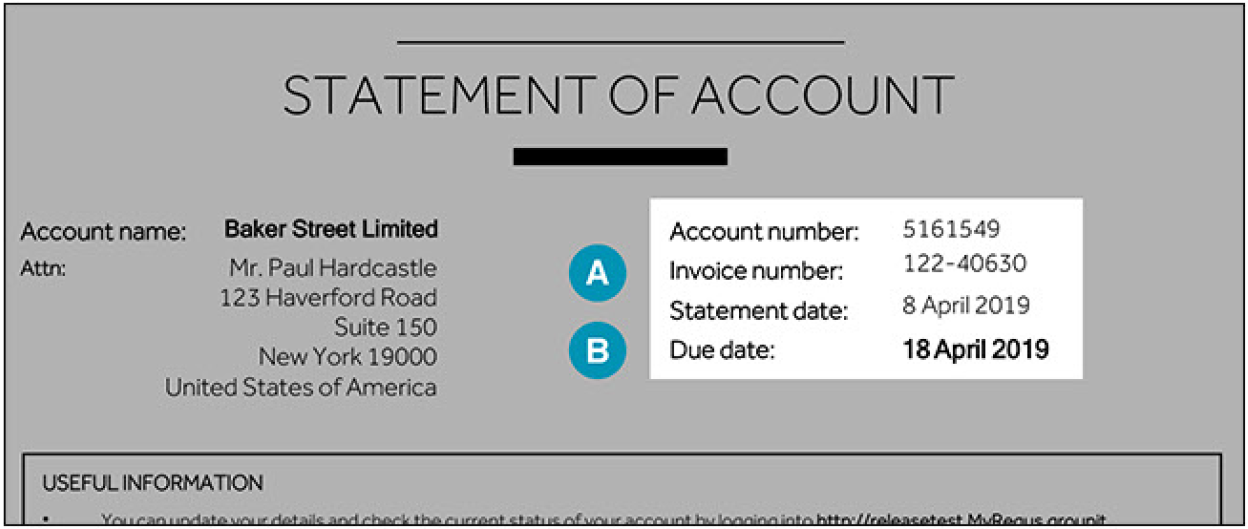
Your account number will appear on your IWG, Regus, HQ, Spaces
invoice.
·
Click Pay Now
·
On the next screen, enter your name in the ‘Name’ field
·
Enter your telephone number in ‘Phone’
·
Enter you email address in ‘Email’ – this is where the
confirmation will be sent
·
Enter the amount you wish to pay in the ‘Payment Amount’ field
·
Click ‘Add a Payment Method’ and follow the prompts to add your bank
account information
·
Enter your Invoice Number in ‘Invoice Number’ – the invoice
number can be found on your IWG invoice and must be entered exactly, including the
hyphen “-“
o
Payments for multiple invoices cannot be combined
into a single payment. Each invoice
number must have a separate payment entry
·
Click ‘Continue to Payment’
·
On the next screen, verify all information and click to agree to
the terms and conditions
·
Click ‘Make Payment’
·
A confirmation screen will display, at which point you can log out
·
The
confirmation will also be emailed to you